User Guide

Download the complete user guide (PDF)

The complete Camtend user guide is available as a PDF booklet covering setup, attendance, schedules, reports and administration, step by step. Choose your preferred language:

Download the guide — English Download the guide — العربية

If camera is not working in a terminal deice, make sure that you allow "using camera permission", If it is still not working then try another device or contact us.

Introduction

Camtend is a simple cloud based time and attendance system that helps you monitor one or multiple business location in real time. It captures the picture and the location of the employee during their clock-in/out

You can use Camtend in two different ways:

  • Flexible Hours
    It is very simple where employees can clock-in/out at any time without any restrictions. They don't have to follow clocking rules. For example, they don't have to clock-in first before Clocking-out.
  • Shift Schedules
    It is more advanced system, here you can use schedule and shifts. and employees have to follow rules set by admin when they make any punch.

To switch between the two systems go to settings -> general settings menu

Here we will introduce Shift Schedules only, because Flexible Hours is very easy to work with.
To start using Shift Schedules we need to clarify some terms that are used in this system:

Shift:

It is a working period in a day. for example "Morning Shift" starts at 9:30 am and ends at 4:30 pm.

Schedule:

It is one shift or a group of non-overlapping shifts an employee can work in a day> it can be assigned to employee or a group of employees over a period of days. for example: Suppose a company has two shifts (Morning shift: from 8:00am to 1:00pm and Evening from 5:00pm to:8:00pm) We then can create Schedule called "Nurse Schedule" which contains the two shifts.
We can then assign this schedule to nurses for all the days or for a certain period, say from 1st January to 31st March.
Note:
Each schedule MUST has a minimum of 1 shift.
Shifts in any schedule SHOULD NOT overlap. For example, a single employee cannot work from 7:00am to 1:00pm and from 11:00 to 4:00pm!

Step by step instructions:

Now we are going to prepare and configure the system.

1- Enter Shifts

Enter the shifts from the menu settings -> Shifts

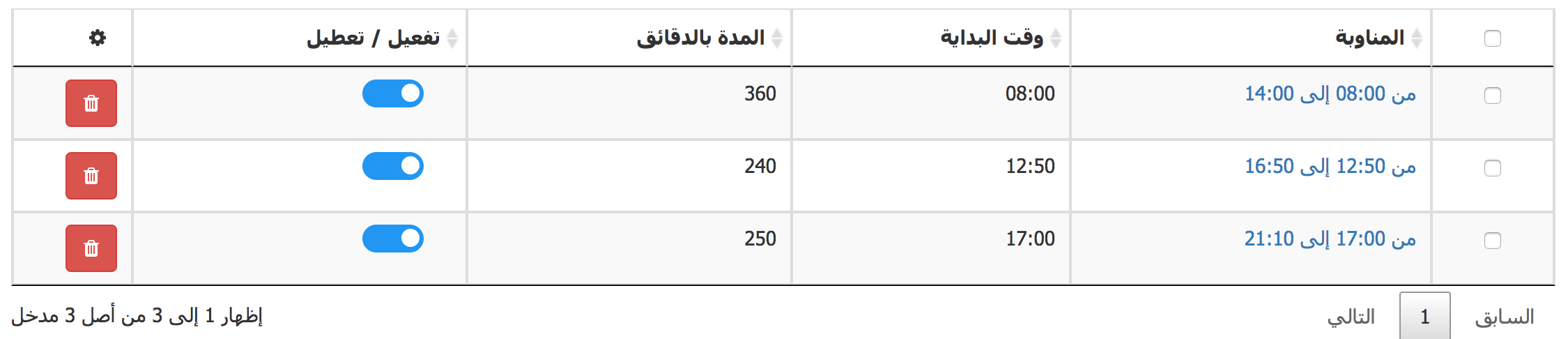
Example of shifts in a company:
Shifts setup screen in Camtend

As you can see, you can enter as many shifts as you want. They can be overlapped.
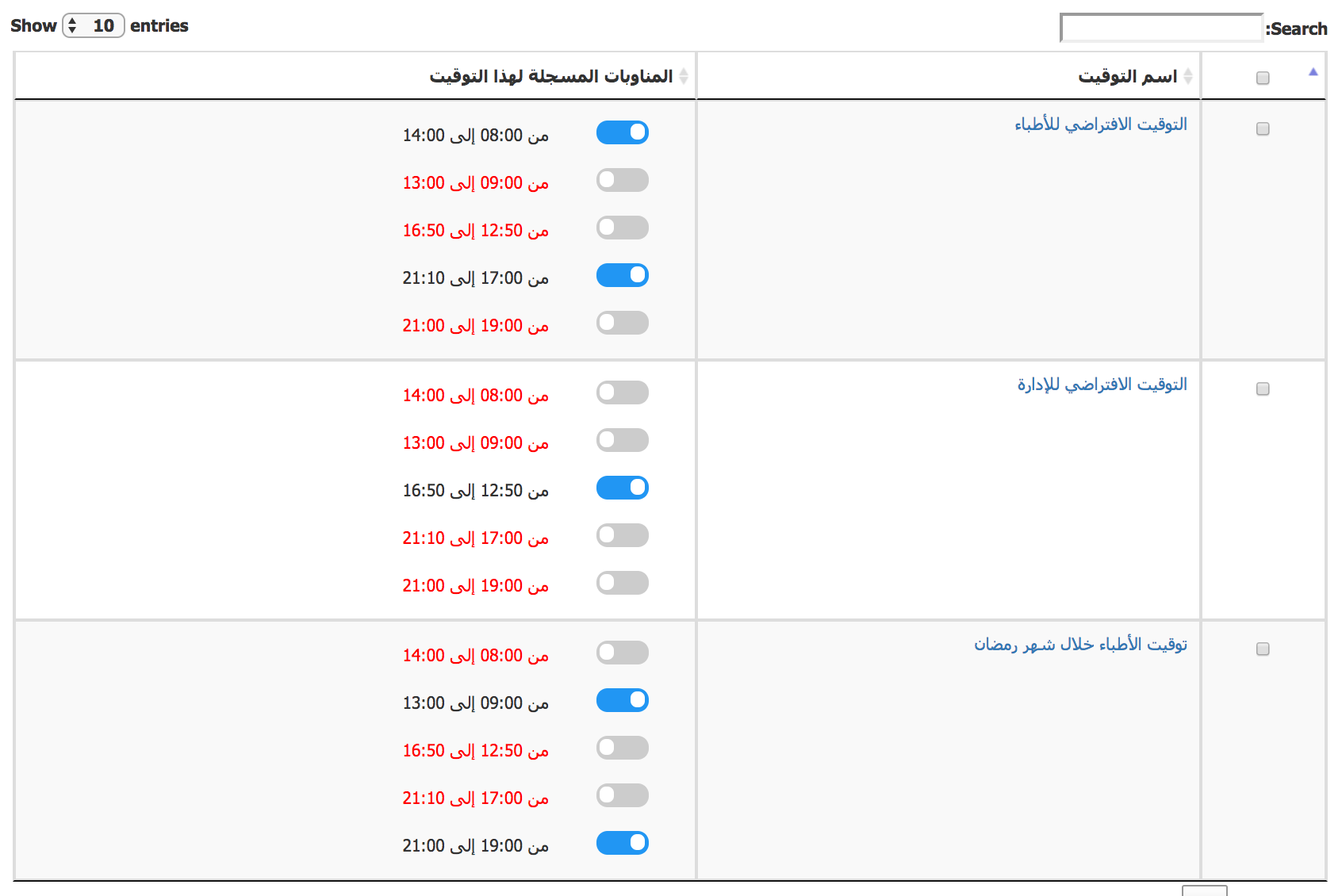

2- Add Schedules

Now you can create schedules and assign one or more shift to each schedule. to do that go to Settings -> Schedules
Example:
Work schedule timings screen in Camtend

3- Add employees

Now you can start creating employees and assign a default schedule for each employee. To do that, go to employees menu -> Add Employee
Note that: the employee' default schedule is the schedule that will be applied to this employee if you didn't specify any other schedule for them on any day.
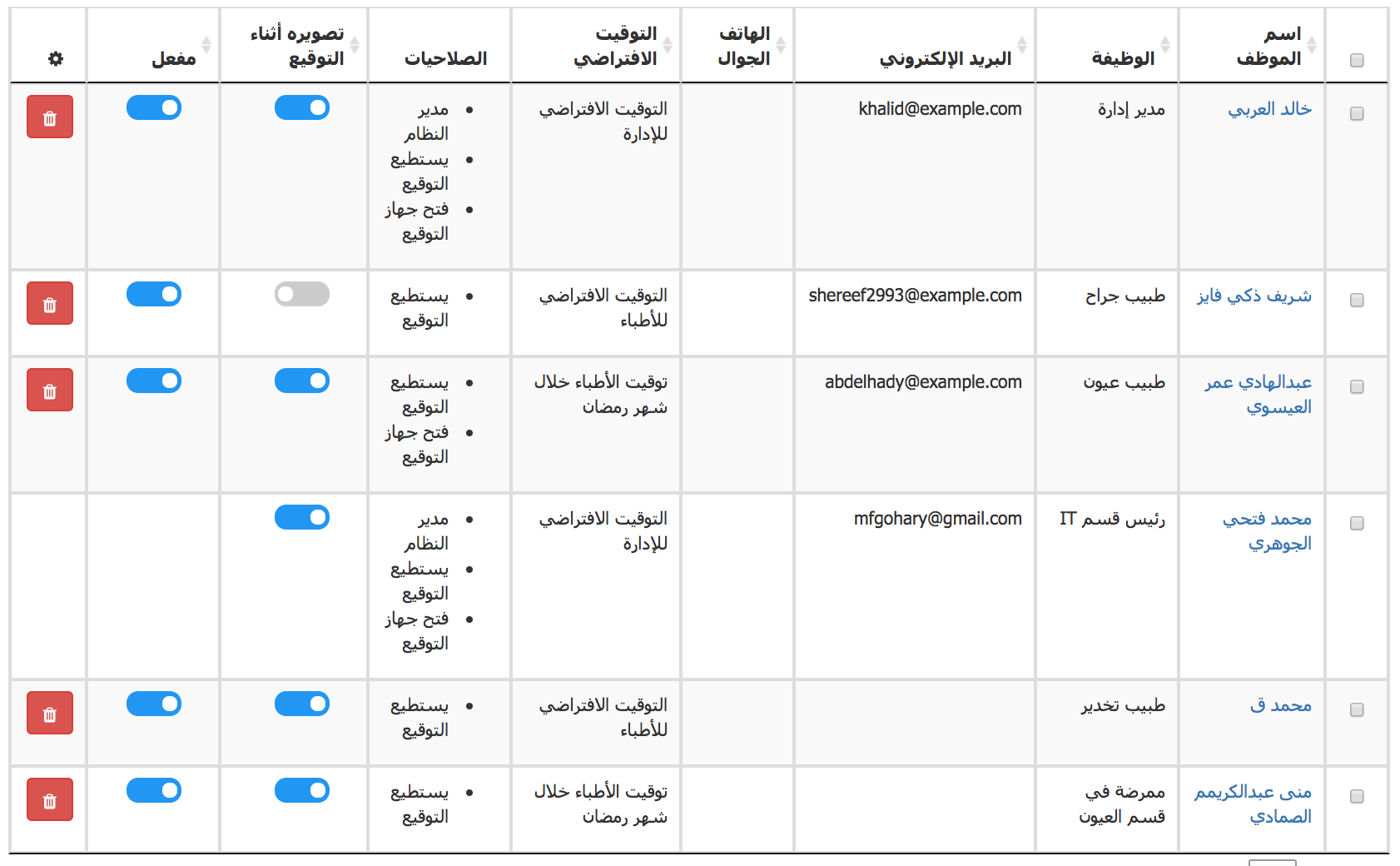
Example of employees data
Employees list in Camtend showing each employee's name, job title, email, default schedule, permissions and active status


Send PINs to employees

Each employee must have a PIN to be able to clock-in/out You can print PIN and dispatch to employee or you can click the send button to send PINs to employees emails automatically. In the later case make sure that the employees emails are correct and verified.

5- Run Camtend Terminal App

You can turn any computer, mobile, tablet or iPad to a terminal device to be used by employees to record their punches.
Computer running Windows, Linux, MAC , ... etc: open camtend.com in the browser. now any employee with the right permission can enter their email and password. and will see a button to open the device as a terminal.
Android mobile/Tablet download Camtend Employee for Android from google play then open it.
iPhone mobile/iPad download Camtend Employee for iOS from App Store then open it.

Place terminal device(s) at the entrances of your offices

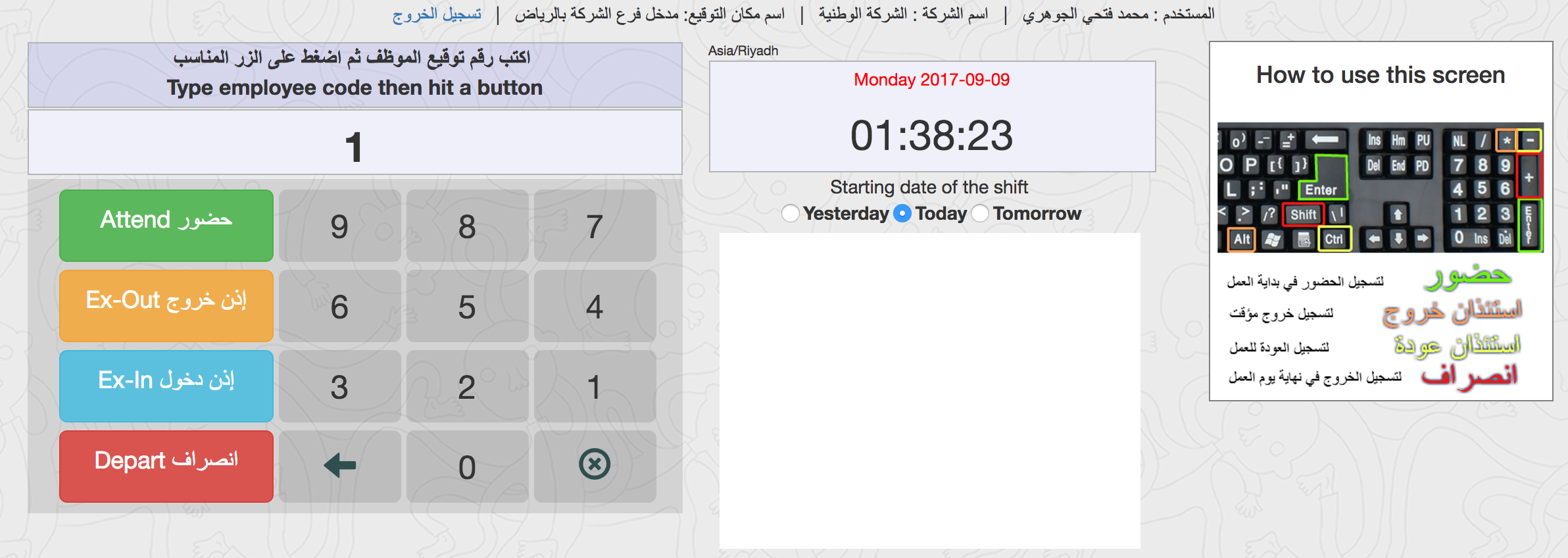
Camtend terminal screen with a PIN keypad and Attend, Ex-Out, Ex-In and Depart buttons


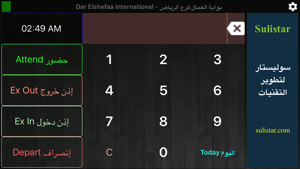
Camtend terminal app on a tablet with a PIN keypad and Attend, Ex-Out, Ex-In and Depart buttons

Now you are all set. Any employee can now clock-in/out on any terminal device by entering their PIN At the same time, The admin gets instant notifications on their device whenever an employee clocks in or out.


Good Luck!